Guests rarely think about a “service system”. They want to book a table, find the current menu, choose a dish and ask for help without delay. Technology is useful when it shortens that journey and does not make people guess what to do next.
1. Map the guest journey
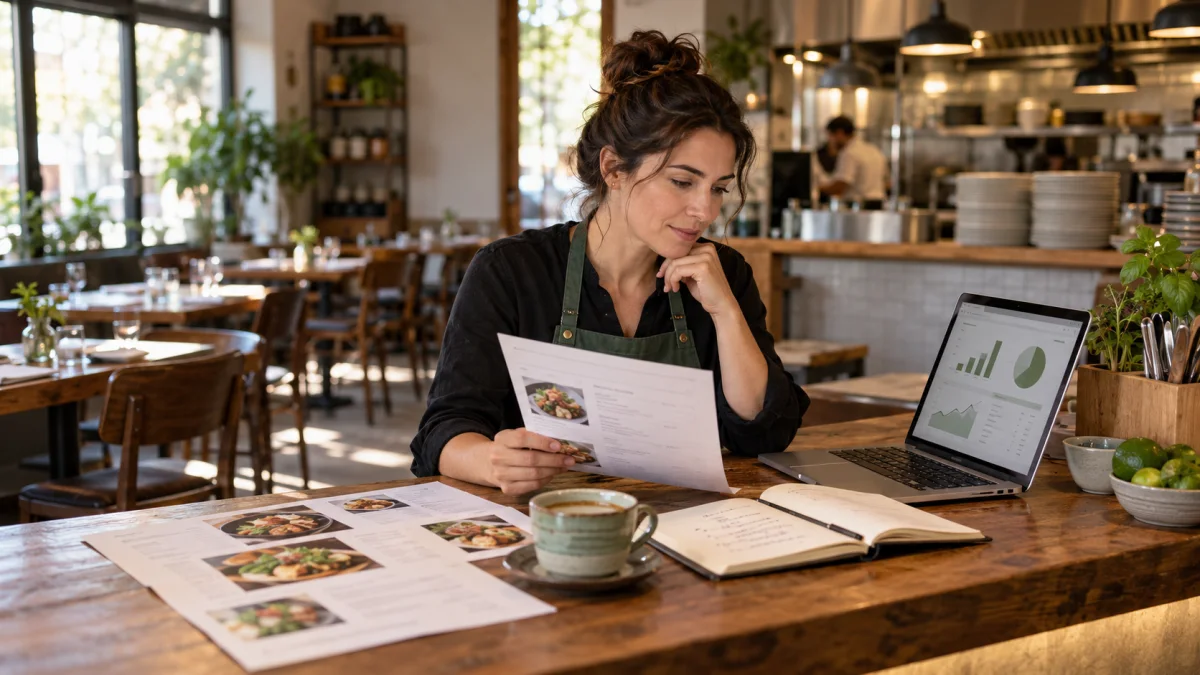
Start with paper, not settings. Write down the sequence: a guest finds the venue, checks opening hours, books, arrives, opens the menu, asks about ingredients, orders, pays and considers returning. Add the question your team hears most often at each step.
This shows where technology actually helps. A QR menu can reduce questions about current prices, while online booking can collect essential information before a visit. Neither will fix unclear rules, outdated availability or the absence of a person responsible for replying.
Guests should see
Current information, a simple next step, confirmation that an action worked and an easy way to ask for help.
The team must prepare
An owner for every stage, current data, a way to handle exceptions and a fallback when a phone or connection does not help.
2. Simplify booking before the visit
A booking form should not replace a conversation with a long questionnaire. Ask only for information needed to accept and manage the reservation. Explain the time, party size, confirmation method and any fee or deposit terms used by the venue.
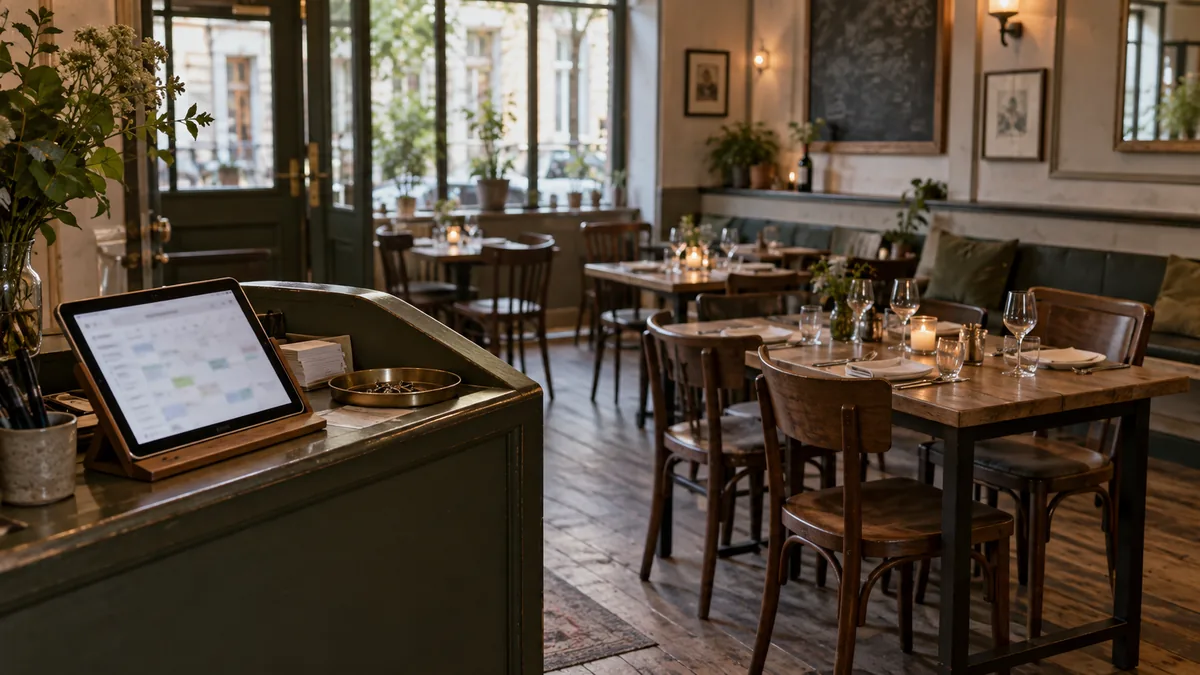
iTasty offers online table reservations and a shared reservation view for the team. Configuration, confirmation and payment details should be matched to the venue during implementation. Before launch, complete the entire journey on a phone, from choosing a time to reading the message shown after submission.
For more questions to test before implementation, read the guide to restaurant reservation system features.
3. Make the menu easy to use at the table
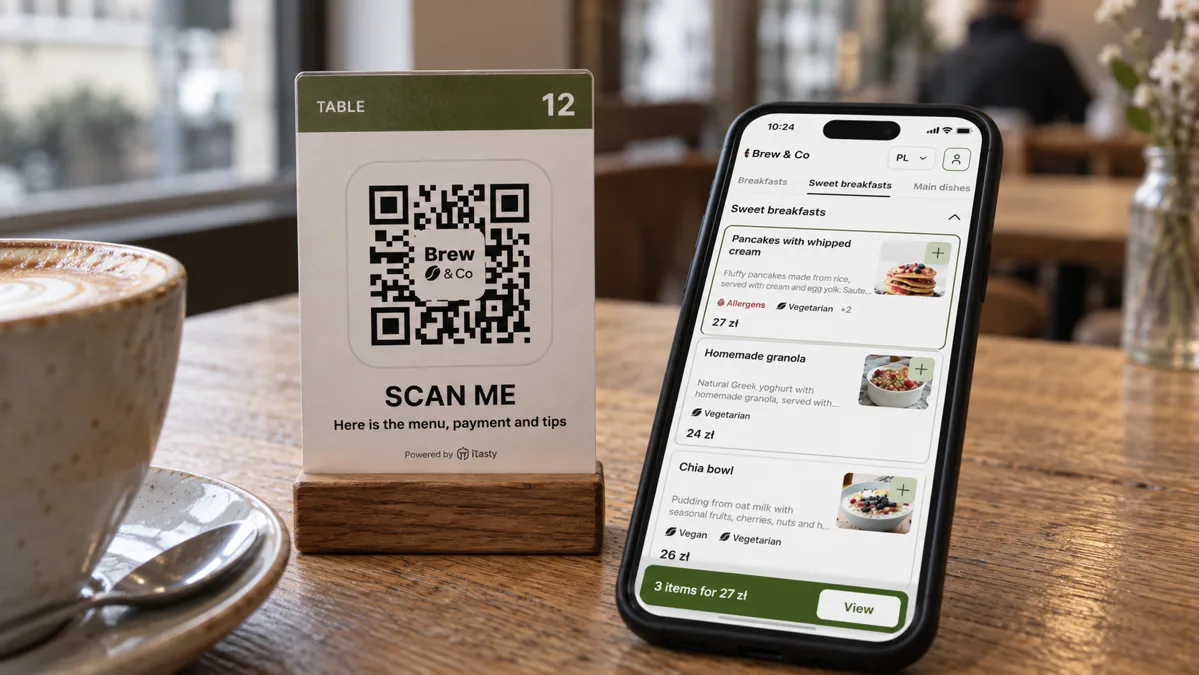
A QR menu is a web page opened in the browser after scanning a code. Guests should not need to install an app. The first screen should show clear categories, current prices and an obvious way forward. Photos can help, but they should not replace names and descriptions.
Test the menu on an ordinary phone, with one hand and in dimmer light. WCAG 2.2 from W3C says pointer targets should be at least 24 by 24 CSS pixels or have sufficient spacing. In practice, category controls, description toggles and ordering actions should not be tiny icons packed closely together.
Check ingredient information too. In the European Union, allergen information is required for non-prepacked food, including food served in restaurants and cafés. A digital menu can make current information easier to reach, but approved recipes and supplier information remain the source. The guide to a menu that different guests can use comfortably offers more practical checks.
4. Connect ordering with the team’s workflow
Viewing a menu, placing an order and paying are three different actions. If the venue enables online ordering, define what happens after a guest presses the button: where the order appears, who notices it, how an unavailable item is marked and who handles corrections.
iTasty allows the team to update menu items, prices and availability and to handle orders as part of the platform. Confirm the module and integration scope before launch, then make a test order from beginning to end. The team should receive what the guest sent without retyping the same information.
Do not add another channel simply because it exists. If nobody watches incoming orders or updates availability, new technology creates another place for mistakes. Start with one process and one service period.
5. Keep help easy to find
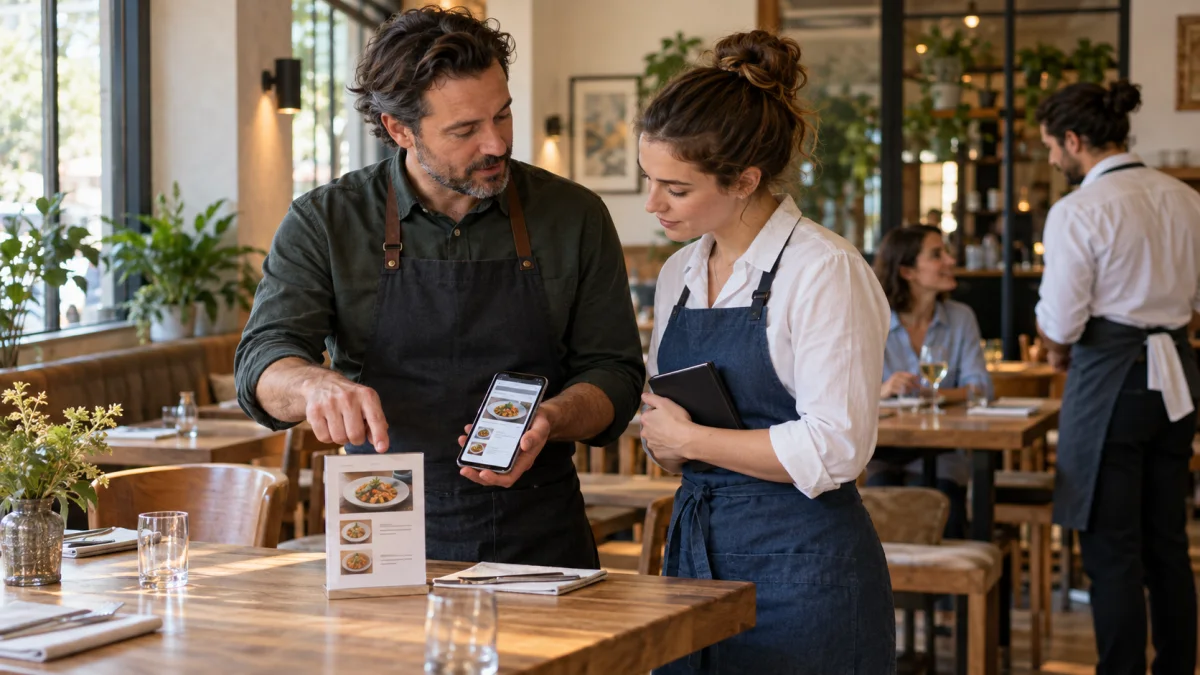
Not every guest wants to use a phone, and batteries, cameras or connections can fail. Tell the team what to do: provide an alternative menu, open it on a venue device or take the order in the usual way. Technology should add an option, not remove human contact.
W3C recommends that repeated help mechanisms appear in a consistent location. In a menu, that could mean keeping contact details or a help action in the same part of successive screens. Do not hide it only in the footer if guests may get stuck earlier.
Assign responsibility in the dining room too. When a guest reports an allergy, an order error or a payment problem, a person follows the venue’s procedure and responds. An on-screen status can inform the guest, but it should not pretend the issue has been resolved.
6. Review one problem each week
You do not need a complex report to begin. Pick one stage each week and record what happened: what guests asked, where they needed help, which information was outdated and what the team had to correct. If system data is available, read it together with observations from the dining room.
For example, if guests open the menu but still ask about availability, do not assume they “dislike QR”. Check whether item status is current and visible. Change one thing, test it over a comparable period and only then choose the next step.
Guest journey checklist
- Are opening hours, prices, availability and booking terms current?
- Does each screen show a clear next step and confirmation?
- Are phone controls comfortable and sufficiently separated?
- Can the guest easily find a person or another form of help?
- Does the team know where a booking or order appears and who responds?
- Do forms collect only the data needed for their stated purpose?
- Is there a fallback that does not depend on the guest’s phone?
To review the journey for your venue, explore iTasty’s online table reservations, QR menu and ordering flow, then book a demonstration. During the call, confirm the available scope, integrations, team responsibilities and price. Not every capability is necessarily included in every plan.
Sources
Sources checked on 20 October 2026.